Monthly Bill Tracker in Google Sheets: Build One That Tells You What Is Due
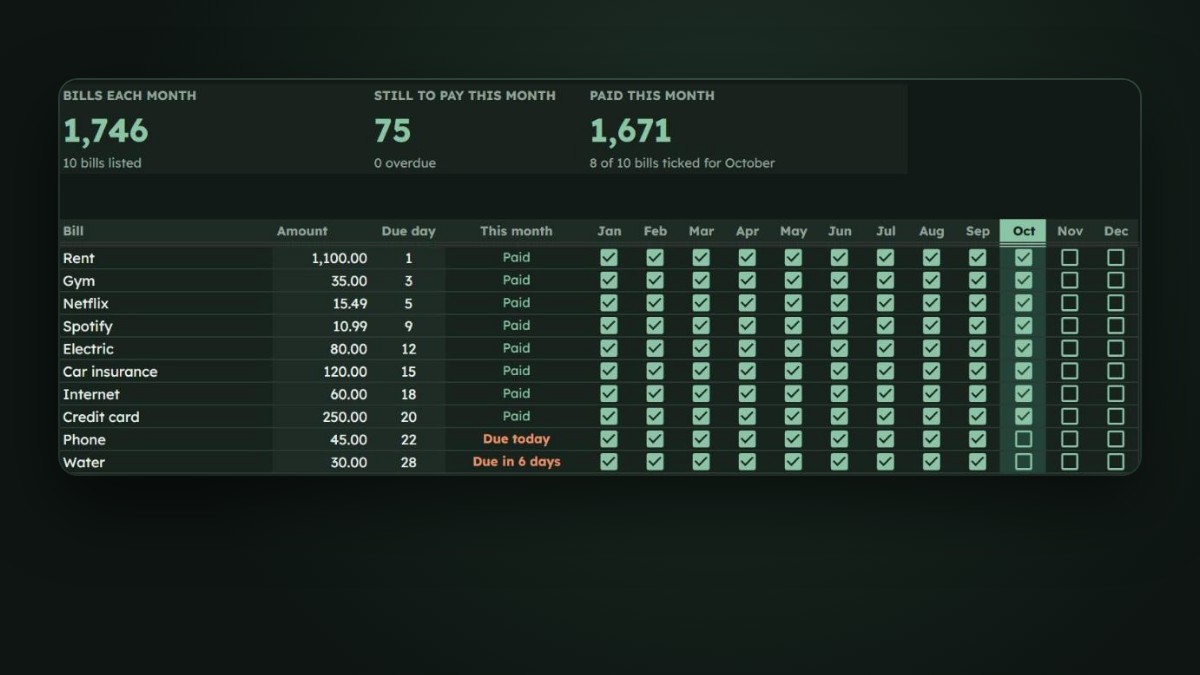
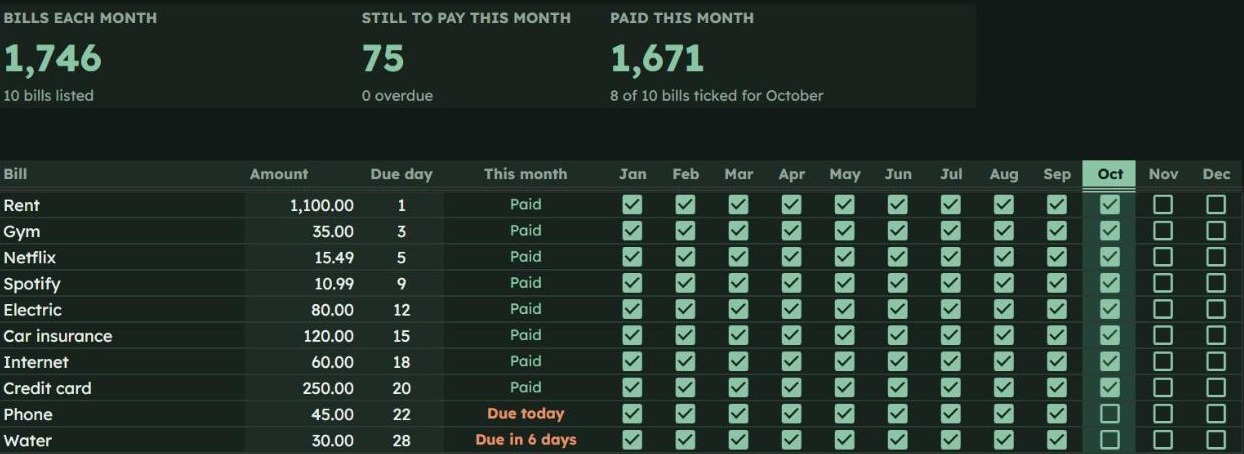
A monthly bill tracker is a list of your regular bills, each with an amount and a due day, plus a tickbox for every month so you can mark each one paid. In Google Sheets you can add a status column that tells you what is due soon or overdue, and a total of what is still to pay this month, all without any scripts.
Bills are the part of money that punishes forgetting. A late rent payment or a missed card bill costs fees, and sometimes more. Yet most people track bills in their head, in a banking app that only shows what already happened, or in a budget sheet where bills sit next to coffee and groceries.
A separate bill tracker fixes that. You list each bill once, and every month you just tick it when it leaves your account. The steps below build one in Google Sheets in about half an hour.
In this guide
Why Track Bills Separately From Your Budget
A budget answers “where did my money go?” A bill tracker answers a different question: “what still has to go out, and when?”
- Bills have dates. Groceries can wait a day; rent and loan payments cannot. A tracker built around due days shows you what is coming next.
- Bills repeat. You set them up once and reuse them every month, so the tracker takes seconds to update.
- Autopay still needs checking. Payments fail when a card expires or an account runs low. Ticking a bill only when you have seen it leave your account catches those failures early.
If you also want a full budget with categories and spending totals, our guide to building a monthly budget template in Google Sheets covers that side. The two work well together.
What a Monthly Bill Tracker Should Include
Keep each row simple. For every bill you need:
- Bill name: rent, electricity, phone, credit card and so on.
- Amount: the usual amount. For bills that change, use your best estimate and update it when the bill arrives.
- Due day: the day of the month it is due, such as 1 or 15.
- A tickbox for each month: January to December, side by side, so the whole year fits on one page.
- Status: a formula that says Paid, Due today, Due in X days or Overdue for the current month.
Optional columns worth adding: how you pay (autopay, card, transfer), the account it comes from, and which paycheck covers it.
How to Build a Monthly Bill Tracker in Google Sheets
Step 1: Set up the columns
Open a new Google Sheet and add these headings in row 1: Bill (A), Amount (B), Due day (C), Status (D), then Jan to Dec across columns E to P.
Fill in your bills from row 2 down. Leave room for about 30 rows, which covers almost any list and leaves space for new bills.
Step 2: Add a tickbox for every month
Select the range E2:P31, then open Insert > Checkbox. Every cell in the month columns becomes a tickbox that starts unticked.
To stop typos in the due day column, select C2:C31, open Data > Data validation and set it to a number between 1 and 31.
Step 3: Make the status update itself
In D2, add this formula and copy it down to D31:
=IF(A2="","",IF(INDEX(E2:P2,MONTH(TODAY())),"Paid",IF(C2<DAY(TODAY()),"Overdue",IF(C2=DAY(TODAY()),"Due today","Due in "&(C2-DAY(TODAY()))&" days"))))
It looks at this month’s tickbox. If it is ticked, the bill shows Paid. If not, it compares the due day with today and shows Overdue, Due today or how many days are left. Because it uses TODAY(), the status moves on by itself every day and switches to the next month’s column on the 1st.
Step 4: Show what is still to pay this month
Put these two totals in empty cells above or beside the table, for example in S2 and S3:
- Still to pay:
=SUMPRODUCT(B2:B31,--NOT(INDEX(E2:P31,0,MONTH(TODAY())))) - Paid so far:
=SUMPRODUCT(B2:B31,--INDEX(E2:P31,0,MONTH(TODAY())))
The INDEX part picks the current month’s column of tickboxes, and SUMPRODUCT adds up the amounts that are unticked or ticked. A simple =SUM(B2:B31) gives you your total bills per month.
Step 5: Highlight this month and anything overdue
Two conditional formatting rules make the sheet readable at a glance. Open Format > Conditional formatting and add:
- Current month column: apply to E1:P31, choose Custom formula is, enter
=COLUMN()-4=MONTH(TODAY())and pick a light fill colour. - Overdue bills: apply to D2:D31, choose Text is exactly, enter Overdue and pick red text.
Now the column you need today stands out, and anything late turns red.
Step 6: Split bills by paycheck (optional)
If you are paid twice a month, add a Paycheck column that shows which pay covers each bill:
=IF(A2="","",IF(C2<=15,"1st paycheck","2nd paycheck"))
Then total each half with =SUMIF(Q2:Q31,"1st paycheck",B2:B31) (if the Paycheck column is Q). It shows straight away whether one paycheck is carrying too many bills, which is often the real reason money feels tight in the first half of the month. To plan your whole budget around paydays, see our guide to a paycheck to paycheck budget template.
Common Bills to Include
If you are not sure what to list, go through last month’s bank statement and look for anything that repeats. Typical bills include:
- Housing: rent or mortgage, council tax or property tax, home insurance
- Utilities: electricity, gas, water, internet, phone
- Transport: car payment, car insurance, transit pass
- Debt: credit cards, student loans, personal loans
- Subscriptions: streaming, music, cloud storage, gym, software
- Other: childcare, pet insurance, memberships
For bills that only come once a year, such as an annual subscription or a licence renewal, add them as a row and tick only the month they are due. The other months stay blank.
Tips to Keep Your Bill Tracker Working
- Tick only when the money has left. Not when the bill arrives and not when you schedule it. That is what makes the tracker trustworthy.
- Check it on the same day each week. Five minutes during a weekly reset is enough. Our Sunday reset checklist has a slot for exactly this.
- Update amounts when they change. Energy and phone bills drift. A quick edit keeps your still-to-pay total honest.
- Watch due days of 29, 30 and 31. In shorter months, many providers take those payments on the last day of the month, but some move them to the 1st. Check your statement and note the real date in the bill name.
- Use your calendar for reminders. Google Sheets cannot send you a reminder on a date without scripts, so add a repeating event in Google Calendar for any bill you cannot put on autopay.
Free Tracker or Ready-Made Template?
Everything above works in a free Google account, and building it yourself takes about half an hour.
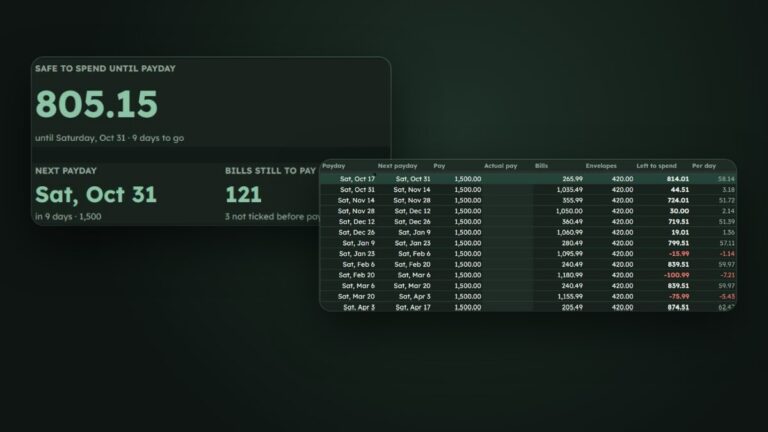
If you would rather start with it done, the HabitSurge Budget Planner for Google Sheets includes this bill tracker, with a tickbox for every month, the self-updating status and still-to-pay and paid-this-month totals. It sits alongside a monthly budget, a transactions log, savings goals and a yearly dashboard that shows the bills still to pay. It comes in Dark and Light versions, has no scripts or add-ons, and works in any currency.
Frequently Asked Questions
How do I make a bill tracker in Google Sheets?
List each bill with an amount and a due day, add a tickbox for each month with Insert > Checkbox, then use a formula with TODAY() to show whether each bill is paid, due soon or overdue. A SUMPRODUCT total shows what is still to pay this month.
Can Google Sheets remind me when a bill is due?
Not on its own. Google Sheets can notify you when someone edits a file, but it cannot send a reminder on a date without a script. The simplest option is a repeating Google Calendar event for each bill, with the tracker showing what is due when you open it.
Should I track bills and my budget in the same sheet?
You can keep them in the same file on separate tabs. The bill tracker shows what still has to go out and when, and the budget shows where everything went. Keeping them on separate tabs means each one stays simple.
What is the difference between a bill tracker and a budget?
A budget plans and tracks all your spending by category. A bill tracker only covers fixed, recurring payments and focuses on due dates and whether each one has been paid this month.
Does a Google Sheets bill tracker work on my phone?
Yes. Open your copy in the free Google Sheets app on iPhone or Android and tap a tickbox to mark a bill paid. The status and totals update in the app too.
References
- Google Docs Editors Help, Add and use checkboxes
- Google Docs Editors Help, Use conditional formatting rules in Google Sheets