Monthly Budget Template for Google Sheets (and How to Build One That Adds Itself Up)
A monthly budget template in Google Sheets is a spreadsheet where you set a plan for each spending category, log what you actually spend, and let formulas total it all up for the month. The version that works long term has four parts: a list of categories with a plan, a transactions log, formulas that add up each category for the chosen month, and a simple bill checklist.
Most budget spreadsheets fail for one reason: they ask you to do the maths every time. You log a coffee, then you have to find the right cell, add it to a running total and fix the “money left” figure by hand. After two weeks you stop opening the file.
This guide shows you how to build a budget where you only type two things, the plan and the transactions, and everything else updates on its own. Every formula below works in a free Google account.
In this guide
What a Good Monthly Budget Template Includes
Before you open a blank sheet, decide what the template needs to do. A useful monthly budget covers:
- Categories with a plan: rent, groceries, transport, subscriptions and so on, each with the amount you expect to spend this month.
- A transactions log: one row per payment or income, with the date, a short description, the category and the amount.
- Automatic totals: the actual amount spent in each category, the difference from the plan, and the money you have left.
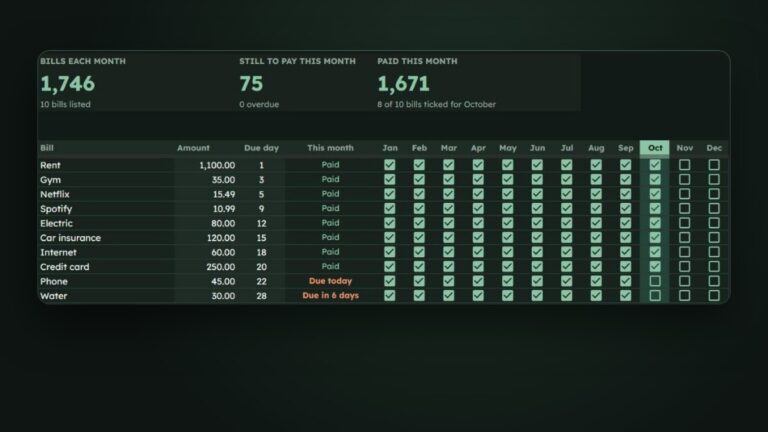
- A bill tracker: your fixed bills with their due days and a tickbox for each month, so nothing slips.
- Savings goals: what you are saving for, by when, and how much that means each month.
You can build all five in one Google Sheets file with separate tabs. The steps below use three tabs: Budget, Transactions and Bills.
How to Build a Monthly Budget Template in Google Sheets
Step 1: List your categories and a monthly plan
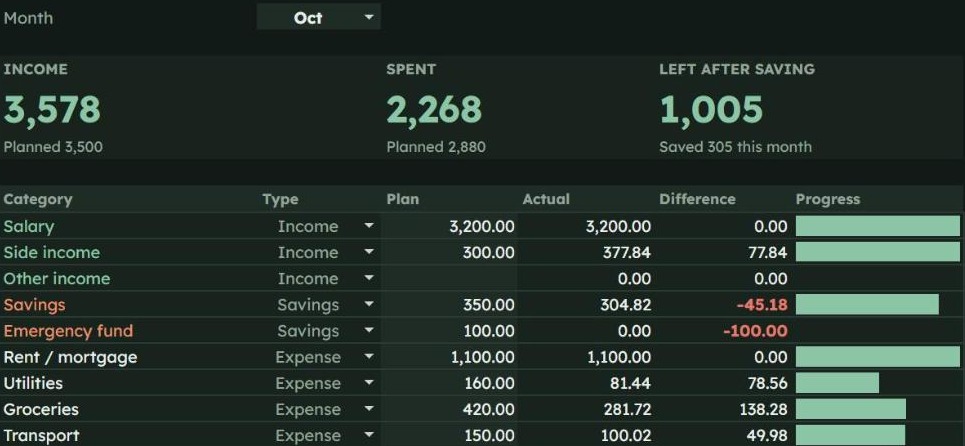
Create a tab called Budget. In row 1, add these headings: Category (A), Type (B), Plan (C), Actual (D) and Difference (E).
List your categories in column A, starting in row 2. In column B, mark each one as Income, Expense or Savings. Type your plan for the month in column C.
Keep the list short to start. Ten to fifteen categories is enough for most people, and you can split one later if it gets too big.
Finally, type the month you want to look at, such as Oct, in cell H1. The formulas in Step 4 read from this cell.
Step 2: Create a transactions log
Add a second tab called Transactions with these headings: Date (A), Description (B), Category (C), Amount (D) and Month (E).
To stop typos from breaking your totals, turn the Category column into a dropdown. Select column C, open Data > Data validation, choose Dropdown (from a range) and point it at your category list on the Budget tab. Now every transaction uses a category name the budget recognises.
Step 3: Let the month fill itself in
In cell E2 of Transactions, add this formula and copy it down the column:
=IF(A2="","",TEXT(A2,"mmm"))
It turns a date like 14 Oct into “Oct”, which the budget uses to pick the right month. If you plan to keep more than one year in the same file, add a Year column with =IF(A2="","",YEAR(A2)) as well.
Step 4: Total actual spending with SUMIFS
Back on the Budget tab, this is the formula that does the real work. In D2, type:
=SUMIFS(Transactions!D:D, Transactions!C:C, A2, Transactions!E:E, $H$1)
It adds up every amount in Transactions where the category matches this row and the month matches the one in H1. Copy it down for every category. Change H1 to a different month and the whole column recalculates.
Step 5: Show the difference and money left
In E2, subtract actual from plan with =C2-D2 and copy it down. A positive number means you are under budget for that category.
To make overspending obvious, select column E, open Format > Conditional formatting, choose Custom formula is and enter =E2<0 with a red text colour.
For a “money left this month” figure, put this in an empty cell outside columns B to D, such as H3. It subtracts total expenses and savings from total income:
=SUMIFS(D:D,B:B,"Income")-SUMIFS(D:D,B:B,"Expense")-SUMIFS(D:D,B:B,"Savings")
Step 6: Add a bill tracker with checkboxes
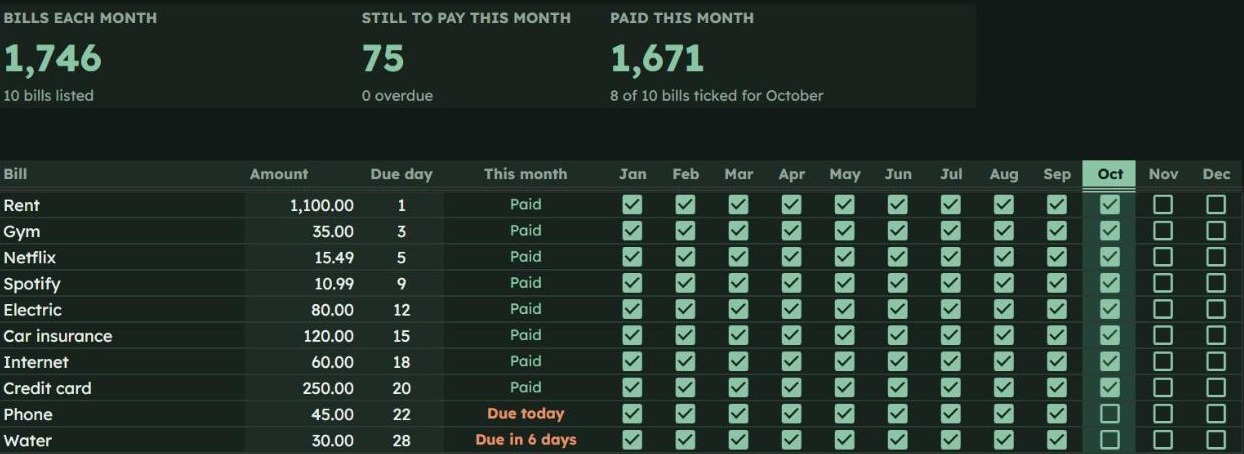
Create a Bills tab with Bill (A), Amount (B), Due day (C) and Paid (D). Select column D and use Insert > Checkbox.
In E2, add a status that updates itself:
=IF(A2="","",IF(D2,"Paid",IF(C2<DAY(TODAY()),"Overdue","Due in "&(C2-DAY(TODAY()))&" days")))
And for a “still to pay this month” total, use =SUMIF(D2:D31,FALSE,B2:B31). Untick the boxes at the start of each month, or add one tickbox column per month if you want a full year on one page. Our monthly bill tracker guide walks through that 12-month version step by step. Paid every two weeks? A paycheck to paycheck budget template matches each bill to the paycheck that pays it.
Step 7: Track savings goals
On a small table with Goal (A), Target (B), Saved so far (C) and Target date (D), this formula works out how much you need to save each month to hit the date:
=(B2-C2)/MAX(1,(YEAR(D2)-YEAR(TODAY()))*12+MONTH(D2)-MONTH(TODAY()))
The MAX part stops the formula from dividing by zero when the target date is this month.
Budget Categories to Start With
If you are not sure what to include, start with these and rename them to fit your life:
- Income: salary, side income, other income
- Savings: savings, emergency fund
- Housing and bills: rent or mortgage, utilities, phone and internet, insurance
- Day to day: groceries, transport, eating out, shopping, personal care, health
- Other: subscriptions, debt payments, gifts, fun, education, kids, pets
If you like rules of thumb, the 50/30/20 approach from Elizabeth Warren and Amelia Warren Tyagi’s book All Your Worth splits take-home pay into 50% needs, 30% wants and 20% savings. It is a useful first plan, not a law. Your own numbers after one real month matter more.
How to Use Your Budget Each Month
A budget only works if you keep it current, and the easiest way to do that is to make it small and regular.
- Log as you go. Add transactions the same day, or batch them once a week from your banking app. Ten minutes on a Sunday is enough for most people.
- Check the Difference column once a week. If a category is running hot, you still have time to adjust before the month ends.
- Tick bills when they leave your account. The status column tells you what is still coming.
- Review at month end. Change the plan for any category you got badly wrong, then switch the month cell and start again.
If you already do a weekly reset, add the budget check to it. Our Sunday reset checklist has a slot for reviewing upcoming bills and payments.
Free Template or Ready-Made Planner?
Google Sheets has a free Monthly budget template in its template gallery (open Sheets, then Template gallery). It is a good start if you want something simple and you are happy to enter totals by hand.
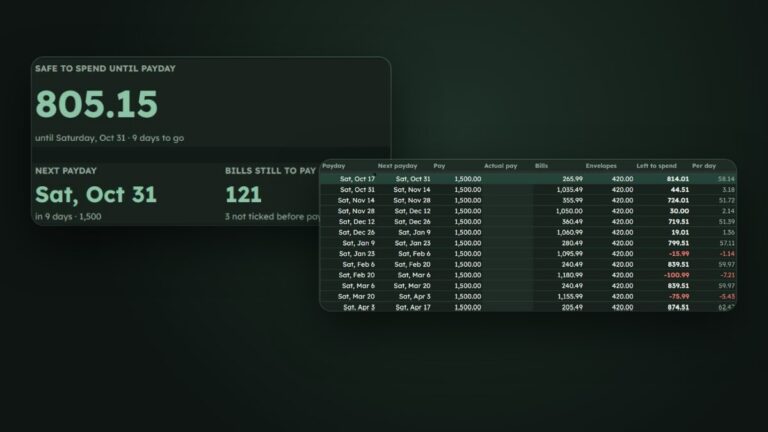
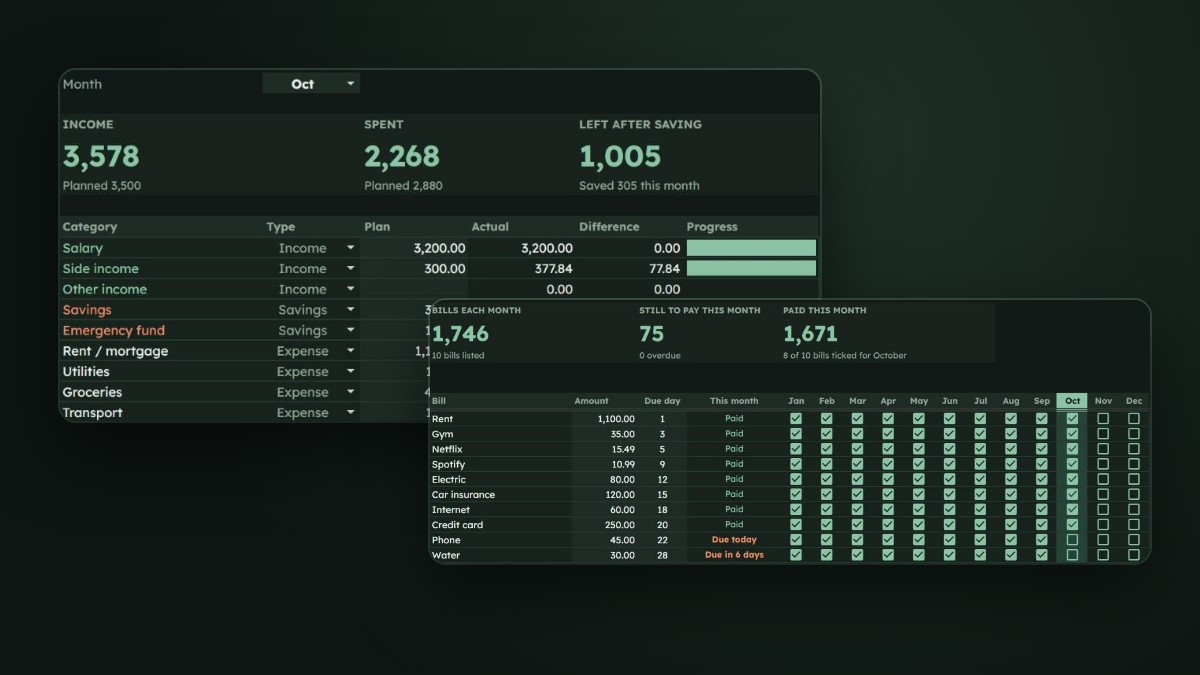
If you would rather skip building and want the version described in this guide already set up, we made the HabitSurge Budget Planner for Google Sheets. It has a Dashboard for the whole year, a monthly Budget with plan vs actual, a Transactions log with room for 1,000 rows, a Bill tracker with a tickbox for every month and a status that updates itself, and Savings goals that work out the monthly amount. It comes in Dark and Light versions, has no scripts or add-ons, and works in any currency.
Want habits, tasks and goals in the same file as your budget? The All-in-One Life Planner includes a budget alongside everything else.
Frequently Asked Questions
Is there a free monthly budget template in Google Sheets?
Yes. Google Sheets includes a free Monthly budget template in its template gallery, and you can build your own in about an hour with the steps in this guide. Paid templates mainly save you the setup time and add extras like dashboards, bill trackers and savings goals.
How do I make a budget spreadsheet update automatically?
Log every transaction with a category and a date, then use SUMIFS to total each category for the chosen month. Once the formulas are in place, you only type the plan and the transactions, and the actual, difference and money left update by themselves.
Can I use a Google Sheets budget template on my phone?
Yes. Install the free Google Sheets app on iPhone or Android, open your copy and add transactions or tick bills from there. Formulas, dropdowns and checkboxes all work in the app.
Does a Google Sheets budget template work in Excel?
You can download a Google Sheet as an Excel file, and simple formulas usually carry over. Features like checkboxes, dropdowns from a range and some formatting may behave differently, so a template built for Google Sheets works best in Google Sheets.
How many budget categories should I have?
Start with 10 to 15. Too few and you cannot see where the money goes; too many and logging becomes a chore. Split a category later only if it keeps surprising you.
References
- Google Docs Editors Help, SUMIFS function
- Google Docs Editors Help, Add and use checkboxes
- Warren, E. and Tyagi, A. W. (2005). All Your Worth: The Ultimate Lifetime Money Plan. Free Press.